We hope that you find this booking system reasonably straightforward to use. All entries (even those submitted on paper) have to be entered this way. If you use a paper form, it means more work – and more chance for copying errors, so if you can do it online, it is much better!
If you get lost or confused, contact admin@skiptonmusicfestival.co.uk and we’ll try to help you through the system.
Logging in
Visit playandperform.co.uk/skipton
To register, you need an email address that’s unique on the system. The registration process requires a fairly standard set of data that should cause few queries. Once you have registered an account, the system will remember all that you have done from one session to the next so you can, for example, build up your entries in your “basket” and finally book them in one batch. We’ll return to that theme later.
Your Home Screen
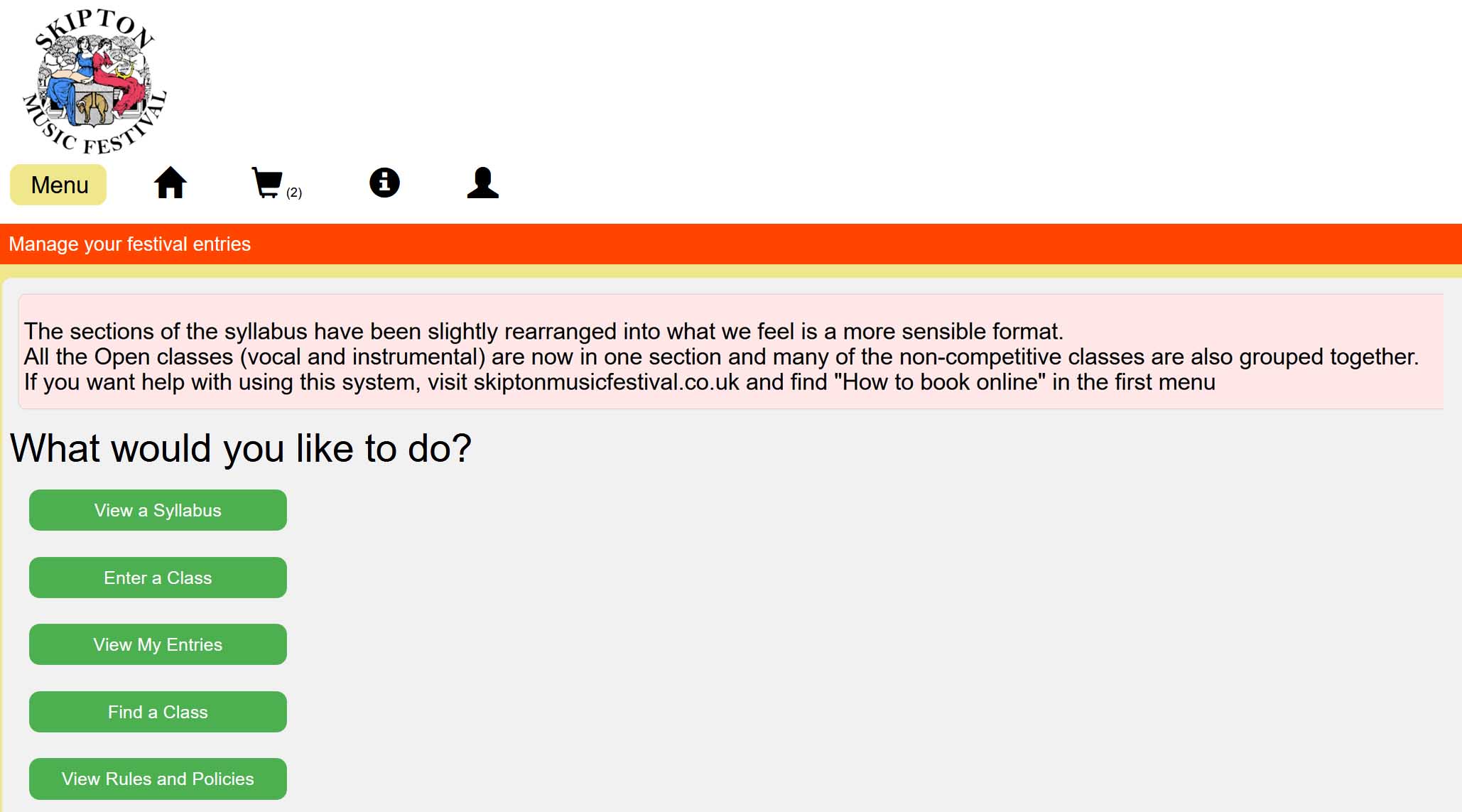
There are some items worth highlighting.
 The Menu button lists all of the things you can do. The green buttons below give quicker access to some of them.
 The “Home and “Basket” buttons also give quicker access to two Menu items. The Basket shows how many entries are waiting.
 Information will provide you with some help while The Account button allows editing your profile and logging out
If you leave the screen for several minutes (I’ve not timed it) you will be logged out. Anything that you haven’t saved (performer details, entry basket etc) will be lost.
Only items that have been saved will survive.

Before you enter a Class, we will assume that you have looked at the Syllabus. You may have seen a formatted printed copy, downloaded a .pdf copy (from here) or viewed the relevant sections on the web page.
You may also be wise to spend a while, making sure that your own lsit of performers is as complete as possible. The system allows you to do this on the fly but itmay be better to do that as a separate job.
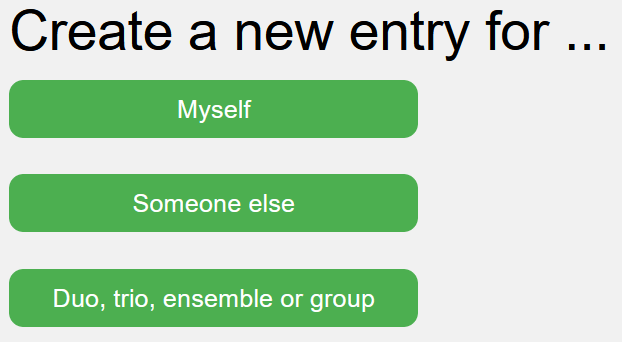 When you click the “Enter a Class” button, you are given three options:
If you are logged in to input your own entries, there are few extra questions to answer. The most-used button will probably be “Someone Else”. Here you can either Create a New Performer or select one that you prepared earlier. You will be asked several questions. The Postcode is required to satisfy local authority licencing requirements. It is not used for any other purpose.
For a Duo, trio, ensemble or group, you’ll see a similar screen. Either choose one that exists or create a new one. Here you have six options. You’ll probably use but three.
For a Duet or Trio, click the appropriate button and then select from your list the two or three performers you’ve already registered. There’s an option to add a new one. For duets and trios don’t be tempted to invent a name for them! We want to see their correct names in the programme! Skip that screen.
When you have defined your ensemble, all the qualifying classes are shown, either all together or divided into their different sections.
You cannot enter an “individual” into a duet class, even if you create a performer called “Ginger Rogers and Fred Astaire”
Groups
Many classes involve groups of performers who are not individually named. Create these with the “Any” button. Here, you have to give the group a name but (as I write, at least) there is nowhere to input any age information, so the selection of available classes is rather wide.
How do I Enter a Duet with a Teacher?
Classes 163 and some ensembles allow a teacher to perform. The ensembles will naturally be added as a “Group By Size” – where you don’t specify the members.
That doesn’t work well for the duet in Class 163.
- To add a young pianist and teacher, register two performers.
If the teacher is named Jane Doe, enter a performer “Jane Teacher”. We’ll spot this so the programme is corrected. - “Jane Teacher” must be Year 4 or younger! (There’s a small gotcha – next year, the program will update your age, so you may need to dose yourself with some sort of
Elixir of Life and edit that entry!) - You can now create a duet that is eligible to enter class 163.
The Checkout
Let all of your entries build up in your basket until all of your entries are complete. That way, you’ll get a single bill and it is less administration for us. You will see a shopping cart symbol at the top of your page. If you have a lot of entries, you can continue to build in your shopping cart over several sessions.
When your entries are complete, click on the shopping cart, review your entries and then click the “Submit” button to turn all of your Basket cases into Entries. You can elect to pay by BACS transfer or by cheque. (We don’t take payment by PayPal or card because this is a significantly more expensive way to pay.)
It is only at this point that your entries become “live”. Your entries are in – they are marked “pending” till we confirm that payment has been made. You need to write and tell us when you’ve paid so we know to check!
If you pay by BACS, be sure (in your own banking app) to use your reference number (“SP000xxx”) so we can link payment to your entries.
If you wish to use the official accompanist for an Own Choice piece, you MUST send the music with when you enter the Festival. Post it to:
Jill Wright, 15 Walker Close, GLusburn, Keighley, BD20 8PW
BOPA and the timetable
Once all entries are in, we will produce the timetable as quickly as possible. This will be emailed out to all those who made entries. Before we can confirm the programme, we need to obtain a license for each child who will be absent from school to take part. EVERY PARENT must sign a declaration, either that leave of absence has been granted or that the child will not be absent iduring school hours. Without this, no child may take part in the Festival.
When you know the times of the classes, send each parent/guardian to skiptonmusicfestival.co.uk/index.php/leave-of-absence where there is a simple form to fill in. But you need to wait for the timetable before you can fill this in!
There is a whole heap of other things – but these are the basics. Most of the rest is pretty intuitive. If you have a problem, please ask!
admin@skiptonmusicfestival.co.uk
… and feedback
One thing in particular, we are not sure about is the way we have organised the syllabus. To make navigation simpler, we have separated the Junior classes into different sections. If you find this makes it all too “bitty”, please say so and we’ll look at whether we need to change that next year. Any other feedback is welcome too! admin@skiptonmusicfestival.co.uk